
Purchase Orders
Creation, dispatch, and management of purchase orders. An outgoing invoice can be generated from a purchase order with the supplier and line items transferred automatically — saves time at month-end.
Viewing the purchase order list
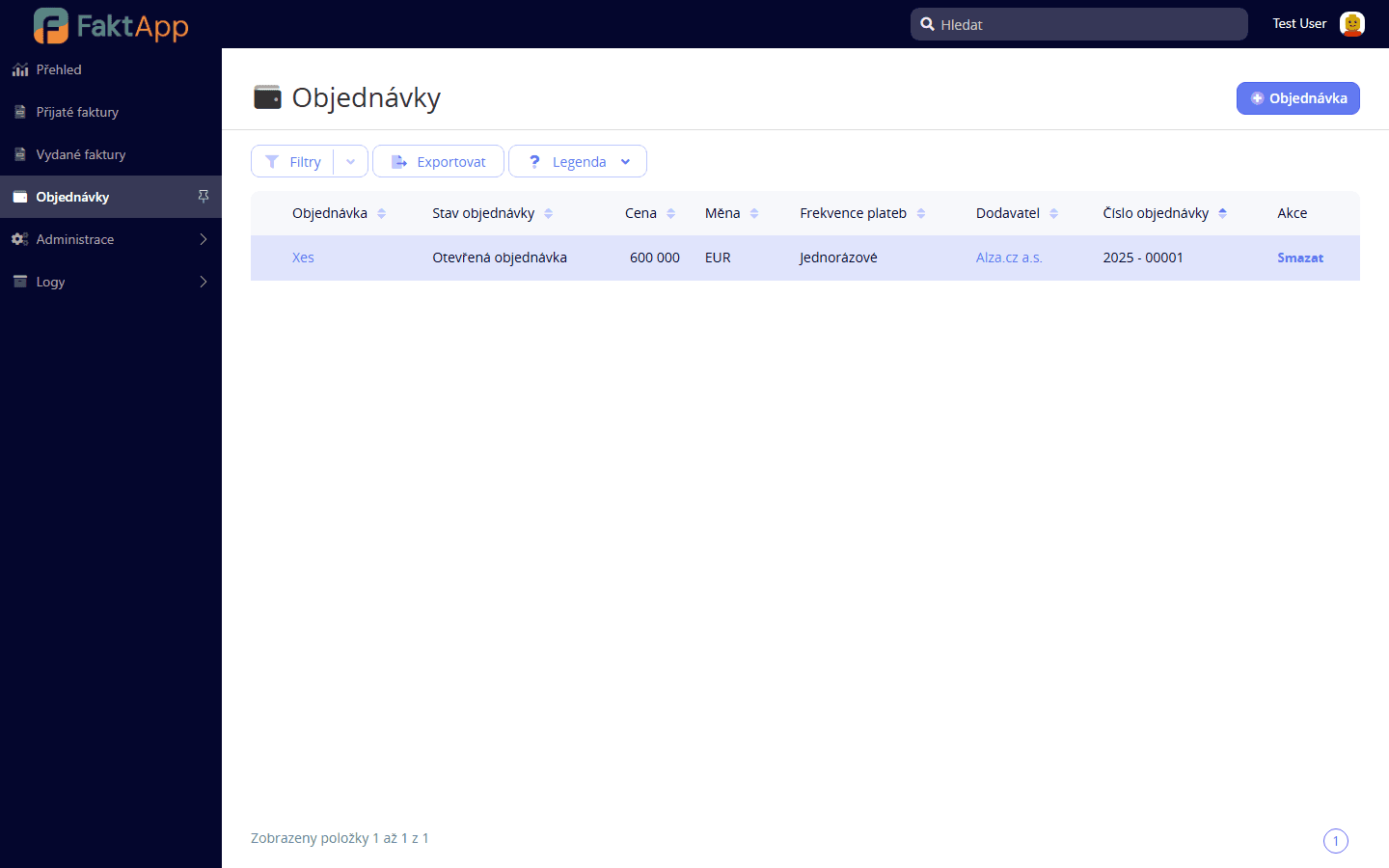
In the left menu, click Purchase Orders. A list of all purchase orders issued to suppliers is displayed — with order number, supplier, issue date, total amount, and current status. The statuses are Open, Approved, Received, Invoiced, and Cancelled. Click a row to open the detail.
Creating a new purchase order
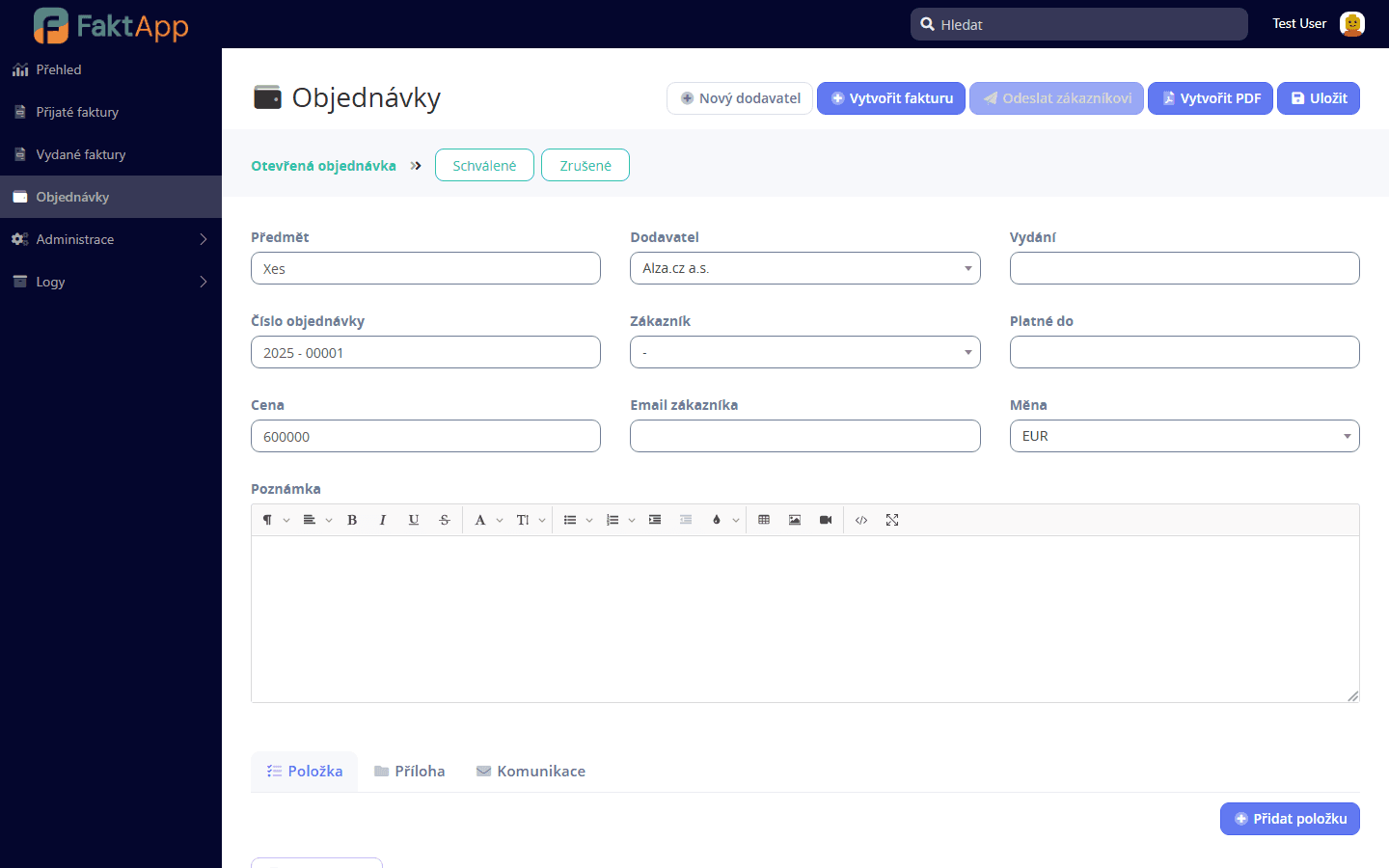
Click the button to create a new order. Select the supplier from the contacts database. Fill in the issue date, currency, and optional delivery info. Save. The order is created in the Open status.
Adding line items
On the order detail, add line items — name, quantity, unit price, and VAT rate. Just like on an invoice, you can use products from the price list in Administration. Totals are recalculated automatically after saving.
Sending the order to the supplier
Once the order is complete, click the send button. The application generates a PDF and emails it to the supplier address stored in their contact. We recommend setting the status to Approved first so the purchase approval is traceable in history.
Creating an invoice from a purchase order
Once the goods arrive, open the order detail and use the action to create an outgoing invoice from the order. The application creates a new outgoing invoice and transfers the supplier, line items (with prices and VAT), and the link back to the order. You then edit the invoice normally in the Outgoing Invoices module. The order status changes to Invoiced.
Status tracking
You set the order status manually based on the actual purchase progress. The application does not guard illegal transitions — the status can technically be set to any value. Delivery tracking and stock movements are not yet supported; the Received status is purely informational.