
Outgoing Invoices
Creation, sending, and export of outgoing invoices. Supports PDF, ISDOC, and ZUGFeRD generation, emailing to the customer, and integration with accounting systems (Pohoda, iDoklad, Premier).
Viewing the outgoing invoice list
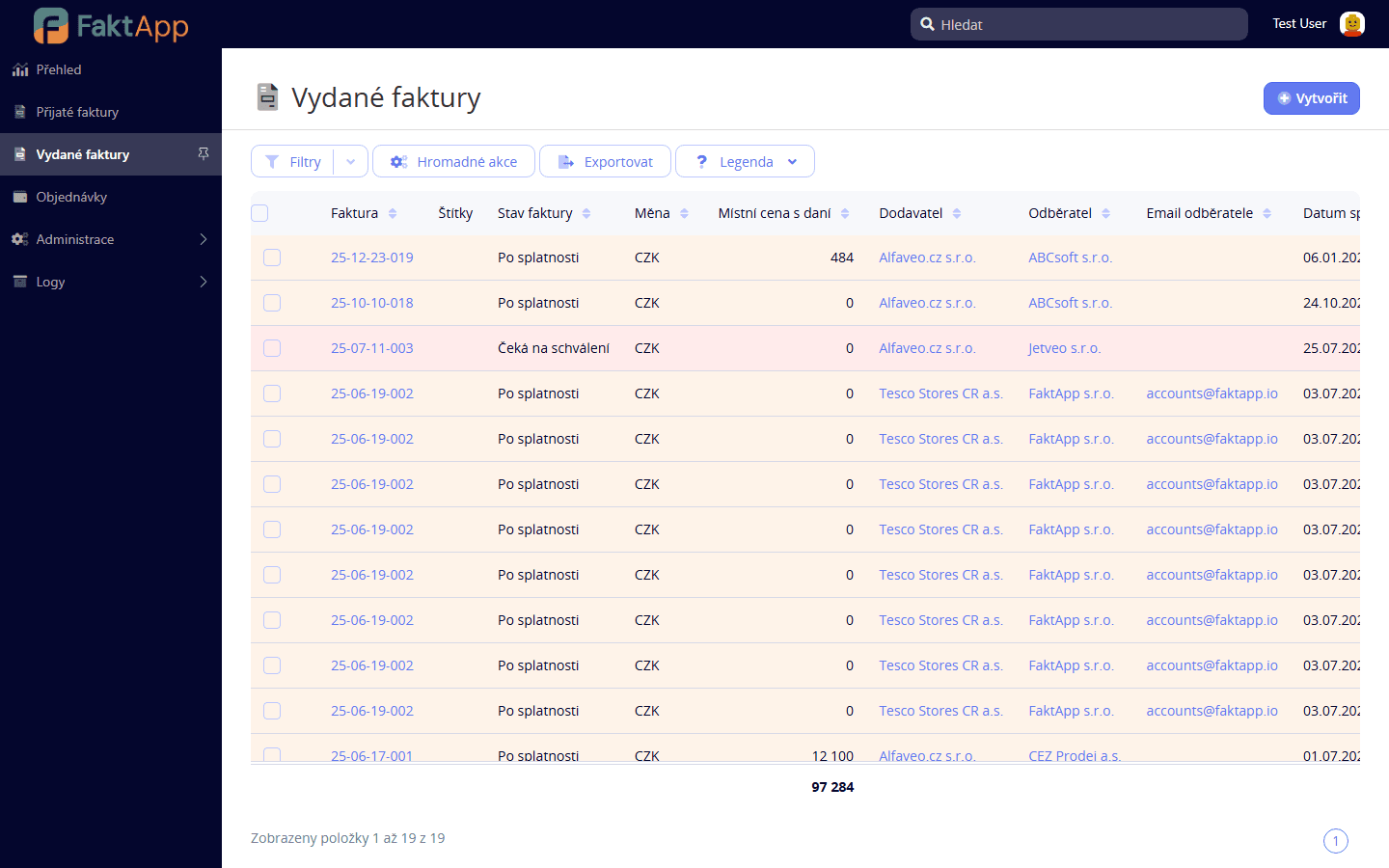
In the left menu, click Outgoing Invoices. A list of all invoices you have issued to customers is displayed — with invoice number, customer, issue date, due date, total amount, and current status. The list can be filtered by status, customer, or date. Click a row to open the invoice detail.
Creating a new invoice
Click the button to create a new outgoing invoice. Select the customer from the contacts database — if they don't exist, create them in Administration → Contacts. Fill in the issue date, due date, and variable symbol. Basic supplier data (your company, Company ID, VAT ID, bank account) are filled automatically from the profile settings. Save and proceed to adding line items.
Adding line items
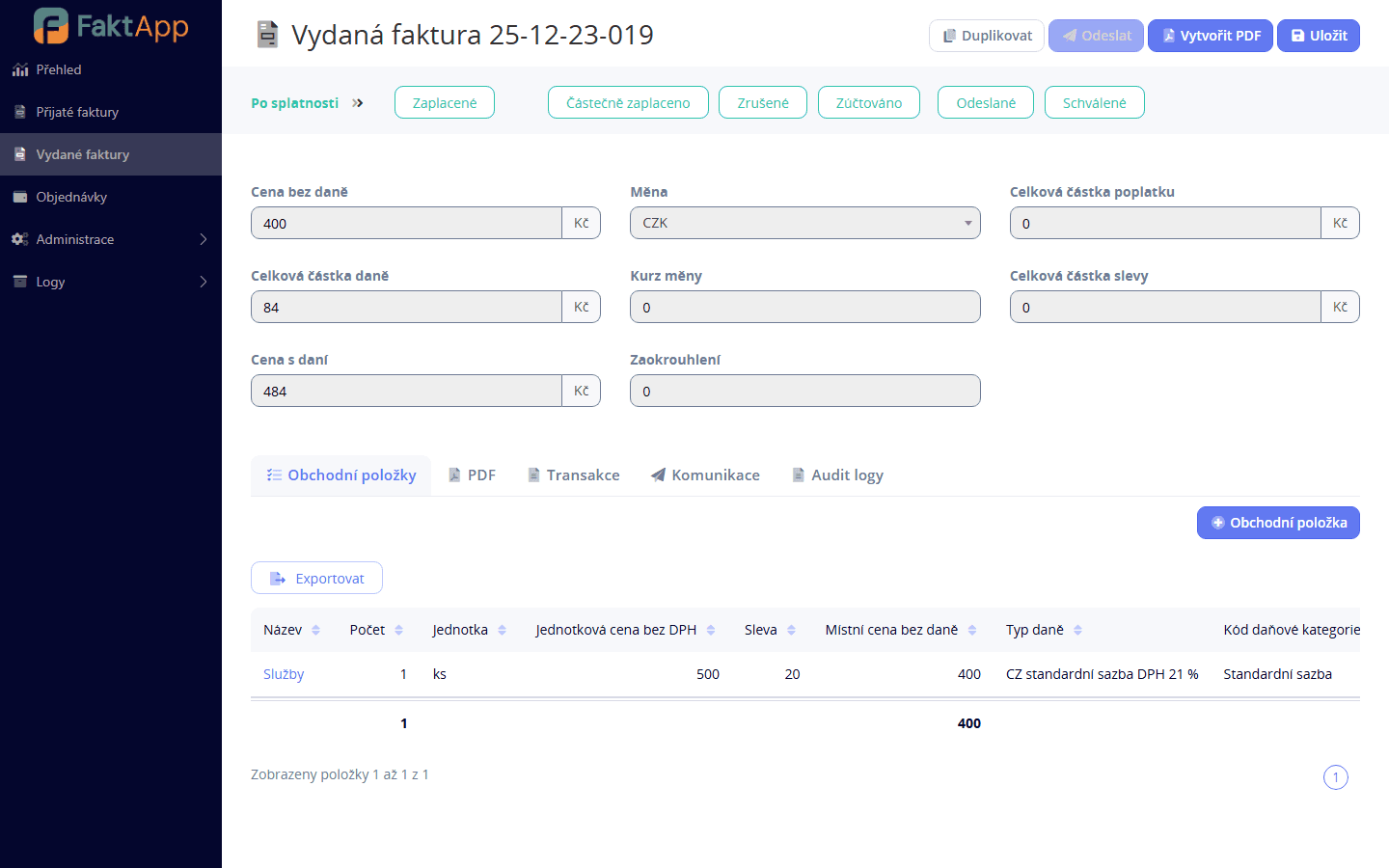
Open the Items tab and click Add item. Select a product from the price list (Products in Administration) or enter a name manually. Fill in quantity, unit price, and VAT rate. Totals including VAT are recalculated automatically after saving. For foreign currency, set the invoice currency and optionally override the exchange rate.
Invoice detail
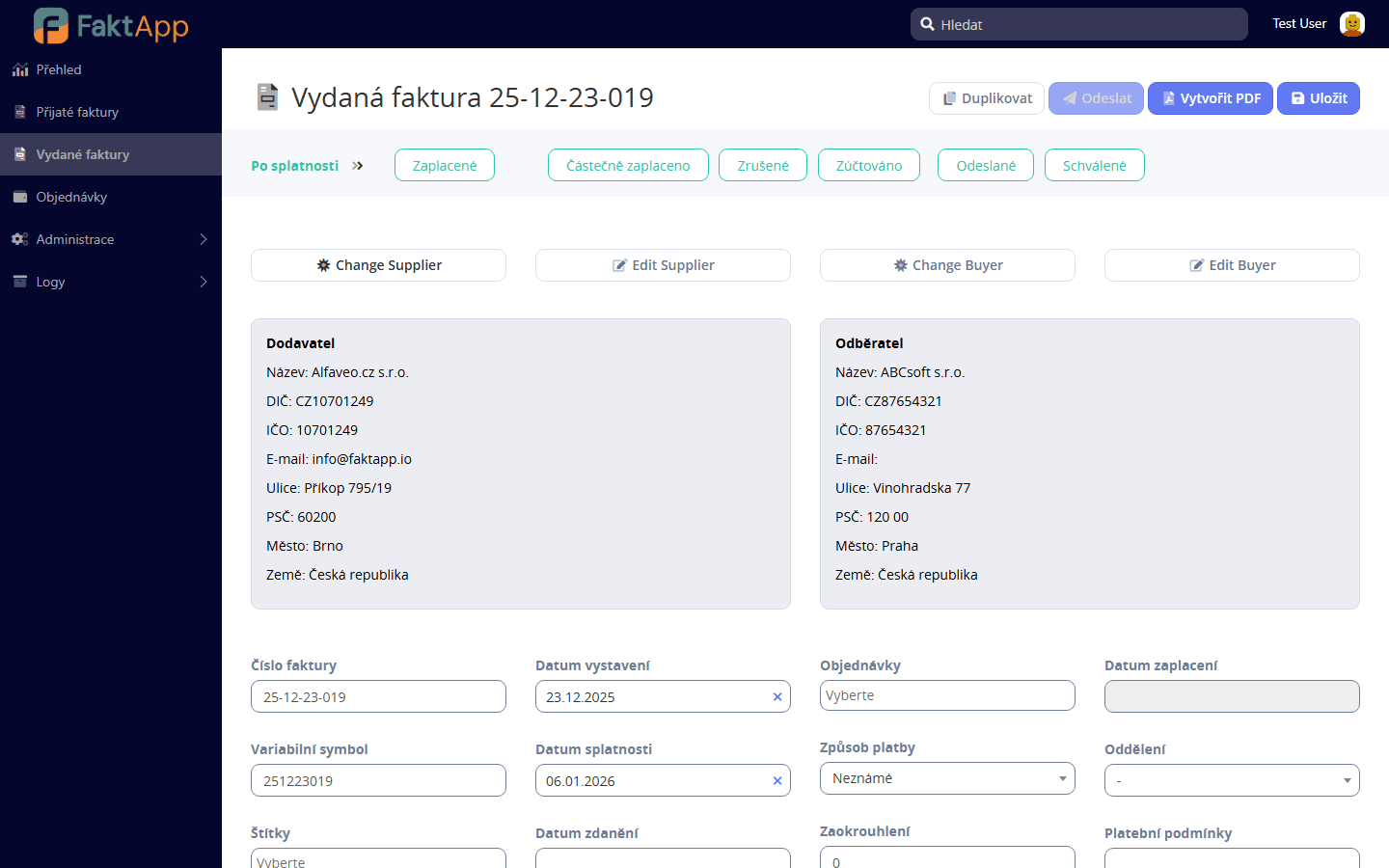
Click a row in the list to open the invoice detail with all data. You see tabs Basic Info, Items, Attachments, and Change History. The top section shows the financial summary (VAT base, VAT, total), customer information, and current invoice status. The supplier and customer profile snapshot is stored when the invoice is issued and is not affected by subsequent settings changes.
Sending the invoice to the customer
On the detail of a finished invoice, click Send to customer. The application generates a PDF, attaches it to an email, and sends it to the customer's email address stored in their contact. The invoice status changes from Draft to Issued. If the customer email is missing, sending fails — add it in Administration → Contacts.
Exporting to PDF and accounting formats
From the invoice detail or list, you can export: Generate PDF for print or archival, Generate ZUGFeRD PDF (German e-invoicing standard with embedded XML), Generate Pohoda XML for import into Pohoda, ISDOC ZIP as a Czech electronic format. Dispatch to iDoklad and Premier is available via separate buttons using configured API keys.
Duplicating an invoice or creating a credit note
For a recurring invoice, open an existing invoice and click Duplicate — a new invoice is created with copied line items. Edit the date, variable symbol, and optionally amounts. A credit note is currently created manually via a duplicate with negative line item values — a dedicated UI wizard is not yet available. Dispatch to AbraFlexiBee is non-functional in the current version, use Pohoda XML or iDoklad instead.